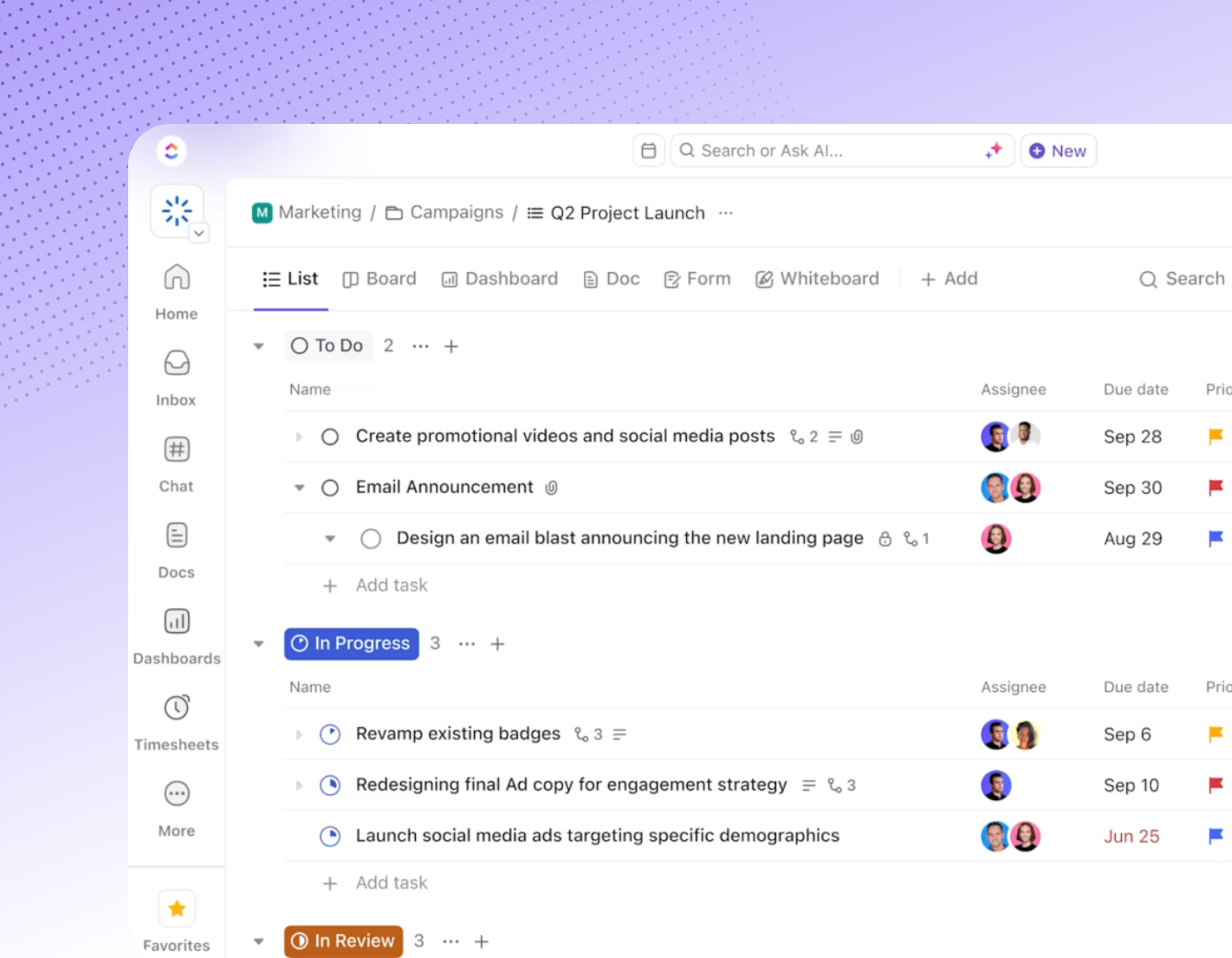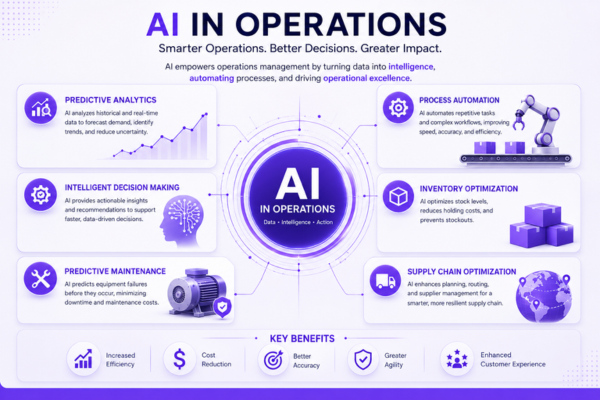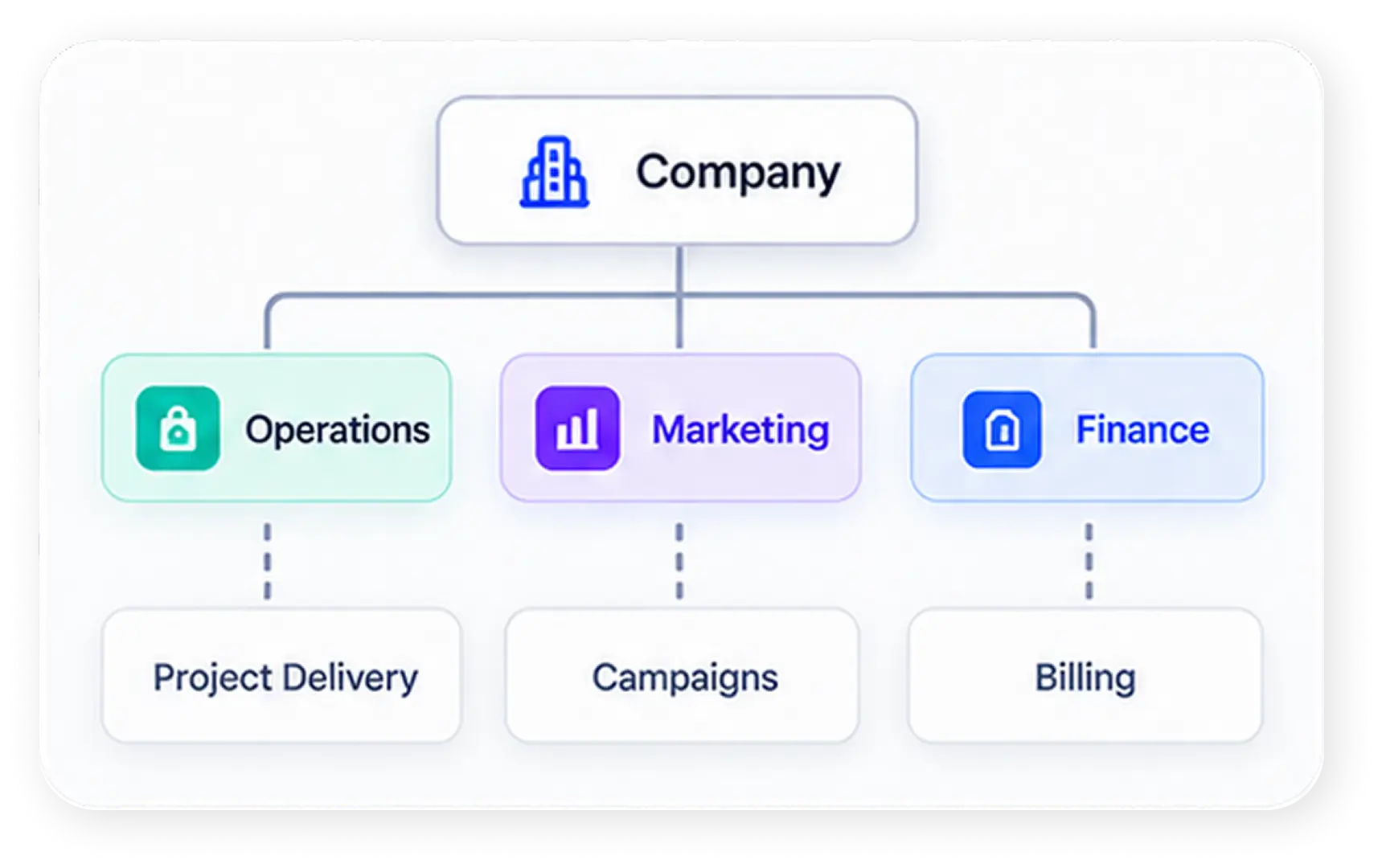
Quick Answer: A ClickUp connector is a secure integration that links your ClickUp workspace to AI assistants like Claude or to business intelligence (BI) platforms, letting you automate task management, generate real-time reports, and turn project data into actionable insights—all without manual exports or custom code. Whether you want an AI agent to create and update tasks for you, or you want clean ClickUp data flowing into your data warehouse for reporting, it is the fastest way to make it happen.
What Does a ClickUp Connector Do?
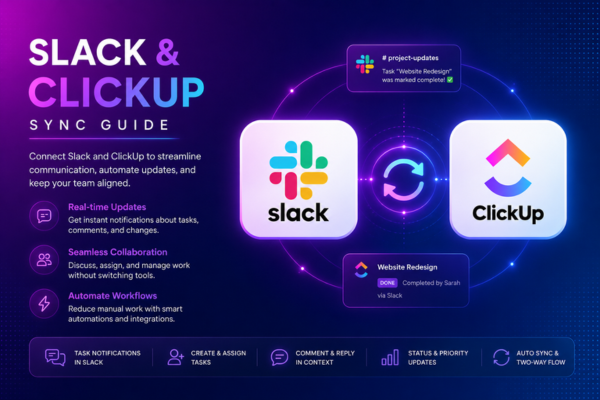
At its core, a ClickUp connector removes the friction between ClickUp and the other tools your team relies on. Instead of manually copying task statuses into a spreadsheet or asking a teammate for a project update, a connector automates the flow of information in both directions.
Depending on the type you choose, it can:
- Read and write tasks, docs, comments, and messages directly inside your workspace
- Sync task, goal, and time-tracking data to a warehouse or BI tool
- Trigger automations based on task status changes
- Power natural-language requests through an AI agent
Types of ClickUp Connectors
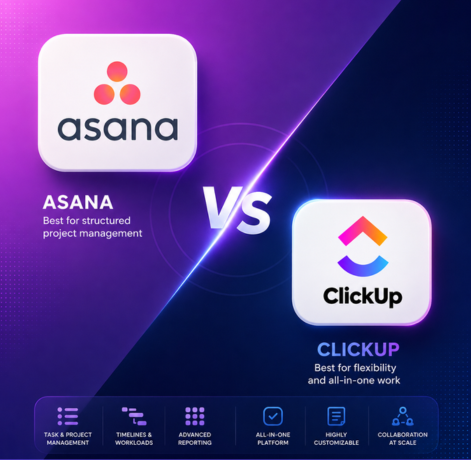
Not every ClickUp connector does the same job. Broadly, there are two categories: connectors built for AI agents and connectors built for data and reporting.
ClickUp Connector for AI Agents (Claude)
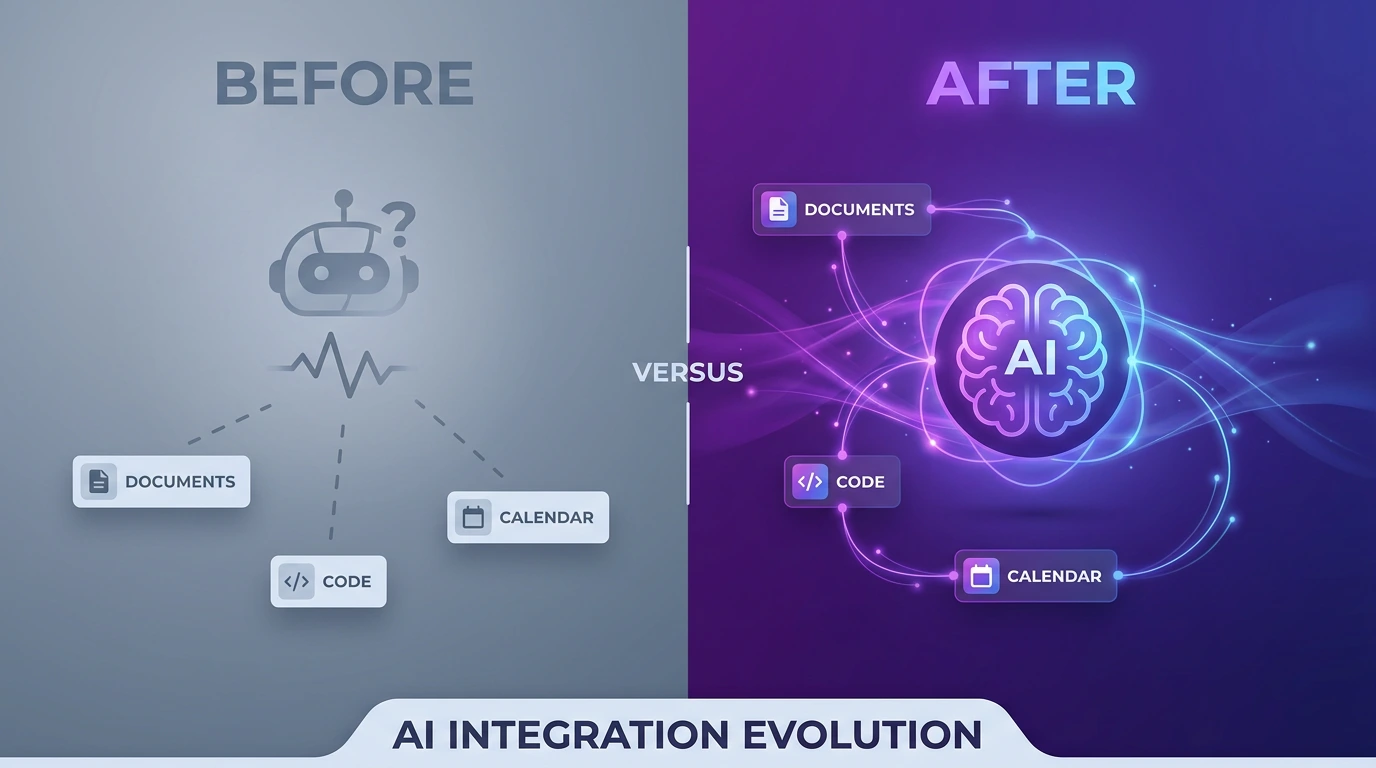
The ClickUp-connector for Claude enables secure, real-time interaction between AI agents and your ClickUp workspace, unlocking AI-driven automation directly on your tasks, docs, and Chat. This kind of ClickUp connector is designed for conversational, action-based work—you simply describe what you need, and Claude carries it out inside ClickUp.
With this ClickUp connector active in Claude, Claude Desktop, Claude Mobile, or Claude Code, you can ask things like
- “List all people in the workspace” to find workspace members
- “Create a task ‘Add logout button’ in Web App → Sprint Backlog” to create and organize tasks
- “Add ‘High’ priority to the ‘Add logout button’ task” to update task details
- “Start tracking time on the current task I’m working on” to track time automatically
- “Create a new document page for our Q1 planning notes” to manage documents
- “Send a message in the Engineering chat channel about the deployment schedule” to send team messages
This is categorized under productivity and supports read-and-write capabilities, meaning it doesn’t just pull information—it can actively make changes on your behalf, turning Claude into a genuine project management collaborator rather than just a chatbot.
ClickUp Connector for BI & Data Warehouses (Windsor.ai)
If your priority is reporting rather than task automation, a data-focused ClickUp connector like Windsor.ai’s is the better fit. This ClickUp connector focuses on extracting and loading ClickUp data—tasks, goals, and time tracking—into the destination of your choice, from Google Sheets and Looker Studio to Snowflake, BigQuery, and PostgreSQL.
With this type of ClickUp connector, you can pull:
- Task data: names, statuses, priorities, assignees, due dates, time estimates, and time spent
- Goal tracking: percent completion, key result counts, owners, and due dates
- Time tracking: hours logged per user, tags, and interval breakdowns
- Lists, folders, and spaces: task counts, privacy settings, and structure
- Comments and team data: reply counts, reactions, custom fields, and user profiles
This flavor of ClickUp connector is built for teams that want dashboards and automated reporting rather than direct task manipulation—think weekly productivity reports or budget-vs-actual tracking across every project.
Key Benefits of Using a ClickUp Connector
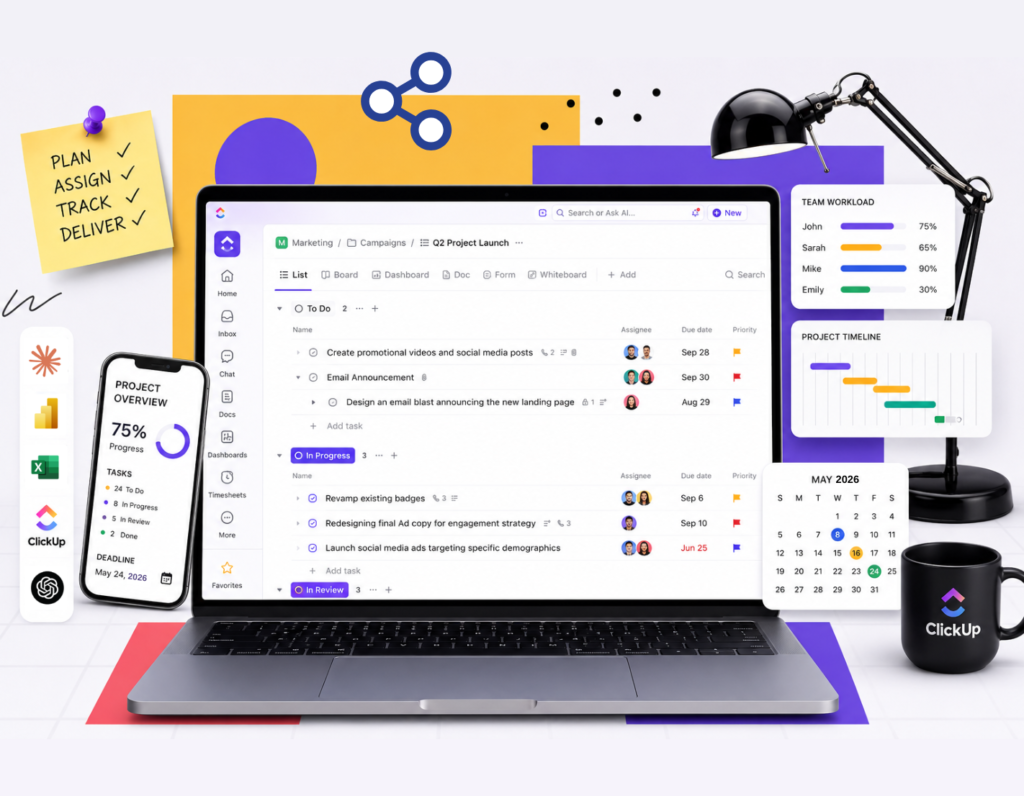
Positioning your workflow around a reliable integration with ClickUp can pay off in several concrete ways:
Less manual work. An integration eliminates repetitive copy-paste tasks between ClickUp and your other tools.
Real-time accuracy. Live data syncing keeps your reports and AI responses aligned with the current state of your workspace.
Faster decision-making. Teams can use automated reporting to identify bottlenecks in task completion and time spent before they become deadline risks.
Natural-language task management. An AI-powered setup lets team members update ClickUp simply by describing what they need, with little or no training required.
No-code setup. Most modern integration tools are designed for non-technical users, offering guided authentication and field selection.
How to Set Up a ClickUp Connector
The exact steps vary depending on the platform you’re using, but the general process looks like this:
Choose your integration type — an AI agent solution, such as Claude’s ClickUp connector, for task automation, or a data integration platform, such as Windsor.ai, for reporting.
Authenticate your ClickUp account and grant the integration the permissions it needs.
Select the workspace, fields, or data points you want the tool to access.
Choose a destination — for AI solutions, this may be the assistant itself; for data integrations, it could be your warehouse, spreadsheet, or BI tool.
Start using it — either by chatting naturally with your AI assistant or by monitoring your dashboard as data is populated automatically.
Most setups take just a few minutes, and neither option requires writing custom integration code. With the right ClickUp Connector, teams can connect their workspace to AI and reporting tools without adding unnecessary technical complexity.
Who Can Help Implement ClickUp Connectors?
While most modern ClickUp connector options are designed for no-code setup, some teams — especially those syncing data across multiple destinations, warehouses, or custom workflows — prefer expert help to get the most value out of the integration.
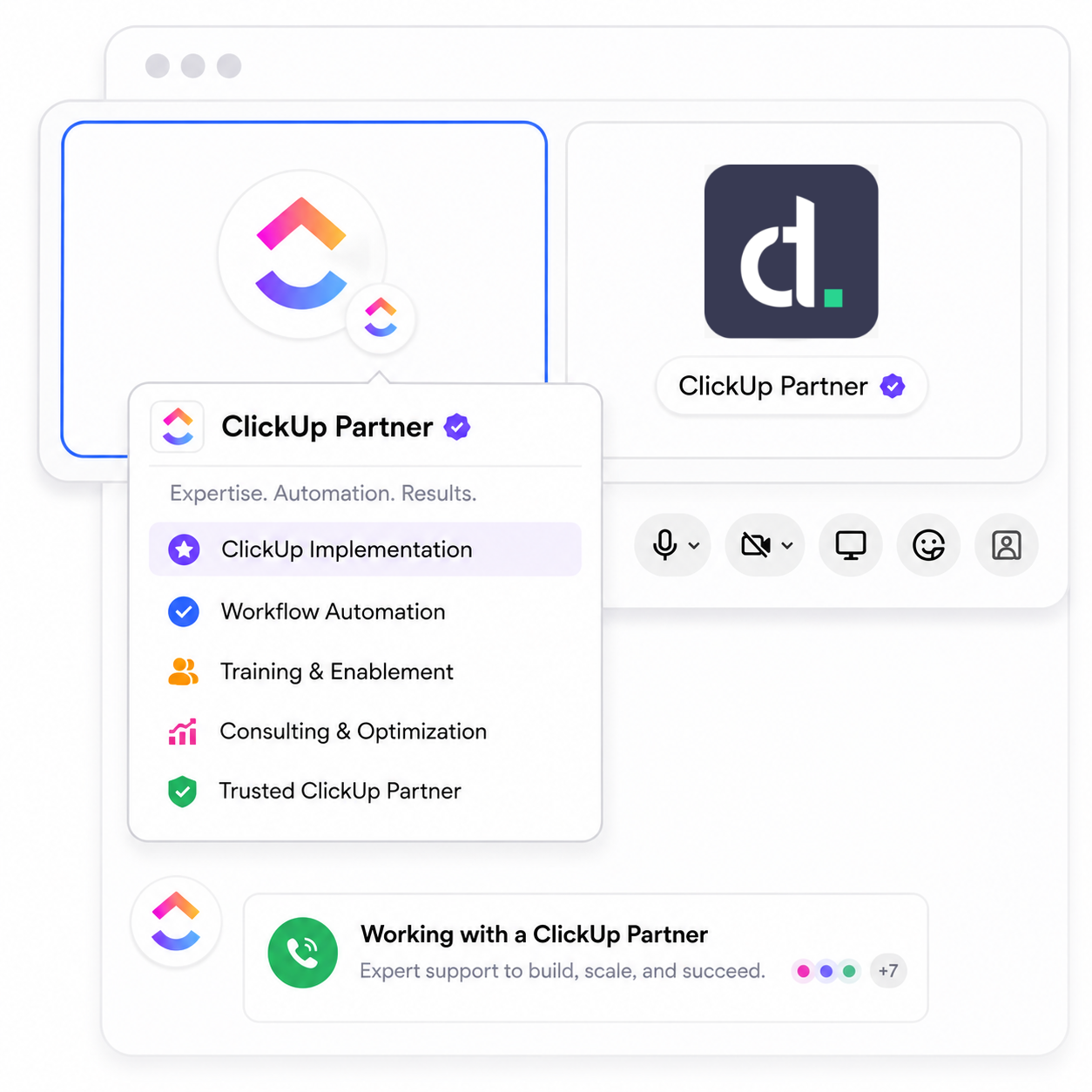
This is where a certified implementation partner like Dtech Systems comes in. As a Diamond ClickUp Partner and Anthropic partner, Dtech specializes in setting up and configuring a ClickUp connector correctly the first time—mapping your real workflows, building the underlying ClickUp hierarchy and automations, wiring in the Claude connector for AI-driven task management, and training your team until adoption actually sticks. Rather than just selling you licenses and stepping away, Dtech stays hands-on through implementation, integration, and ongoing support, which matters most for mid-market and enterprise teams rolling this out across multiple departments. If you’d rather have an expert handle the setup than DIY it, Dtech offers a free first session to rebuild one of your real workflows live.